
What are Spaces?
Spaces are collaborative AI workspaces where teams can organize conversations, configure AI models, manage data, and work together on AI-powered projects. Each space is a self-contained environment with its own settings, members, and resources.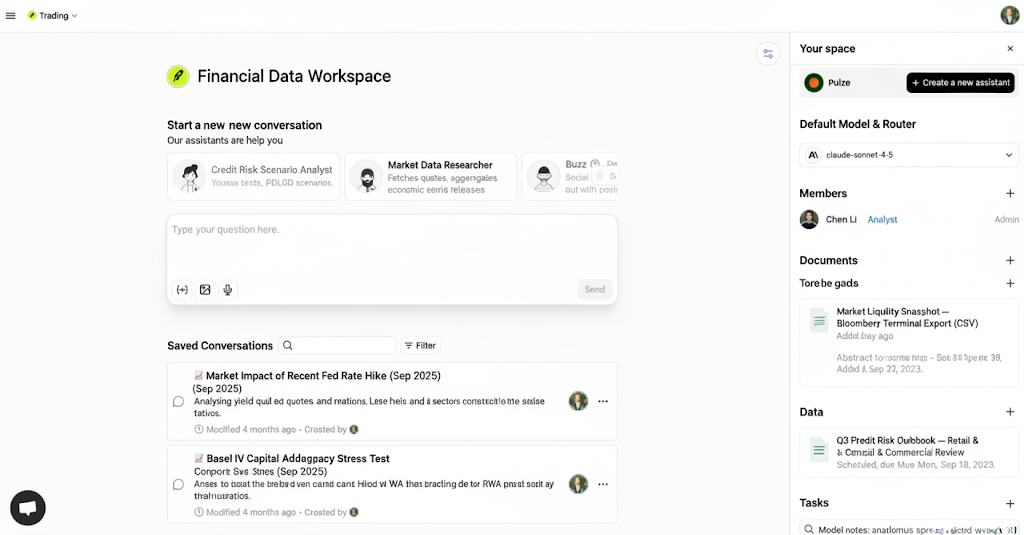
Key Features
Conversations
Start and manage AI conversations with your team
Models & Routers
Configure default AI models and routing strategies
Members
Invite team members and manage permissions
Integrations
Connect external tools and services
Space Components
Space Home
Your space home provides a centralized dashboard with:- Quick access to start new conversations
- List of saved conversations with search and filters
- Default assistant configuration
- Default model and router settings
- Team member overview
- Recent documents and data
- Scheduled tasks
- Learned logs for performance tracking
- Integration status
Space Settings
Each space can be customized with:- Name and Logo: Brand your workspace
- Default Assistant: Set a default AI assistant for new conversations
- Default Model: Choose the primary AI model for conversations
- Default Router: Configure intelligent model routing
- Visibility: Control who can discover and access the space
- Description: Document the space’s purpose
Creating a Space
1
Navigate to Spaces
Click on the Spaces menu in the navigation bar
2
Create New Space
Click the + New Space button
3
Configure Settings
- Enter a name for your space
- Add a description (optional)
- Upload a logo (optional)
- Set visibility preferences
4
Invite Members
Add team members and assign appropriate permissions
5
Configure Defaults
Set your default assistant, model, and router preferences
Space Templates
Pulze offers pre-configured space templates to help you get started quickly:Featured Templates
Featured Templates
Browse curated templates for common use cases:
- Customer Support: Optimized for handling customer inquiries
- Content Creation: Configured for writing and editing tasks
- Data Analysis: Set up for analytical workflows
- Code Development: Tailored for software development
- Research: Designed for information gathering and synthesis
Custom Templates
Custom Templates
Create your own templates by:
- Configuring a space with your preferred settings
- Setting up default assistants and models
- Adding standard data and documents
- Saving as a template for future use
Space Types
Private Spaces
- Visible only to invited members
- Full control over access and permissions
- Ideal for confidential projects
- Can be shared with specific users
Organization Spaces
- Visible to all organization members
- Controlled access through permissions
- Great for company-wide resources
- Easier team collaboration
Public Spaces
- Discoverable by others (if enabled)
- Read-only access for non-members
- Useful for sharing knowledge
- Requires invitation to contribute
Best Practices
Organization
Organization
- Create separate spaces for different projects or teams
- Use descriptive names and clear descriptions
- Set appropriate logos to visually identify spaces
- Regularly archive or delete unused spaces
Configuration
Configuration
- Set default assistants that match your use case
- Configure appropriate default models for your needs
- Use routers for cost optimization and reliability
- Test configurations before inviting team members
Collaboration
Collaboration
- Invite only necessary team members
- Assign appropriate permission levels
- Use conversations to keep discussions organized
- Leverage comments for asynchronous collaboration
Data Management
Data Management
- Upload relevant documents and data early
- Keep data organized and well-labeled
- Regularly review and update datasets
- Remove outdated or unnecessary data
Space Permissions
Spaces support role-based access control:
Learn more about permissions →
Working with Multiple Spaces
Switching Between Spaces
- Use the space selector in the navigation bar
- Recently accessed spaces appear at the top
- Search for spaces by name
- Pin frequently used spaces for quick access
Cross-Space Features
- Assistants: Share assistants across multiple spaces
- Data: Reference organization-wide data in any space
- Models: Use consistent model configurations
- Templates: Apply templates to new spaces
Space Actions
Common Operations
- Edit: Update space settings and configuration
- Duplicate: Create a copy of a space with all settings
- Export: Download space data and conversations
- Archive: Hide inactive spaces from the main list
- Delete: Permanently remove a space and its contents
Next Steps
Conversations
Learn how to manage conversations in your space
Configure Models
Set up models and routers for your space
Invite Members
Add and manage team members
Add Integrations
Connect external tools and services